Find the words inside your scanned PDFs.
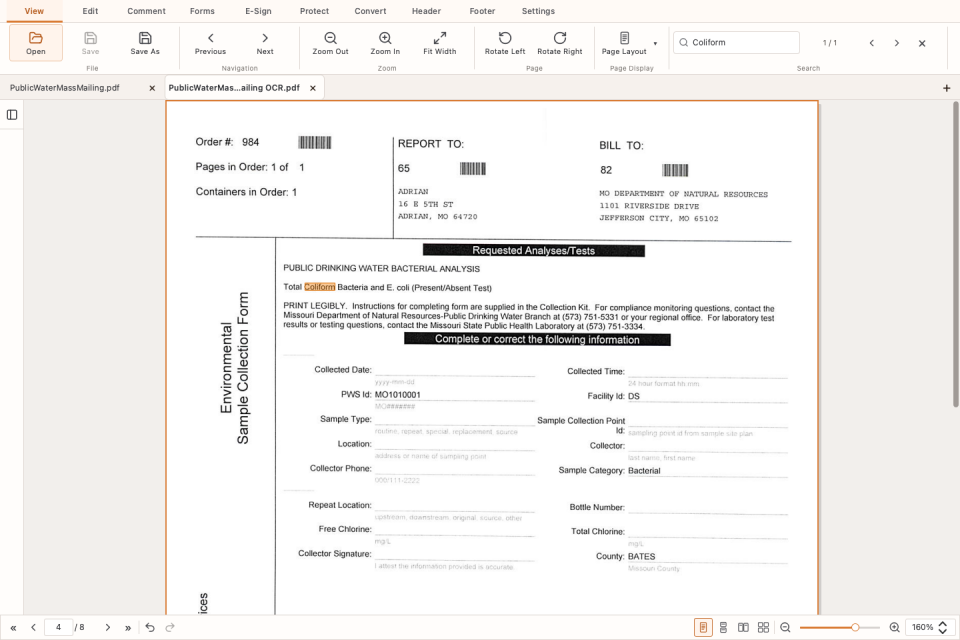
Find a name, copy a passage, or search a scanned report. TrePDF recognizes English and Vietnamese locally and creates a separate PDF with searchable text.
Keep the page you scanned
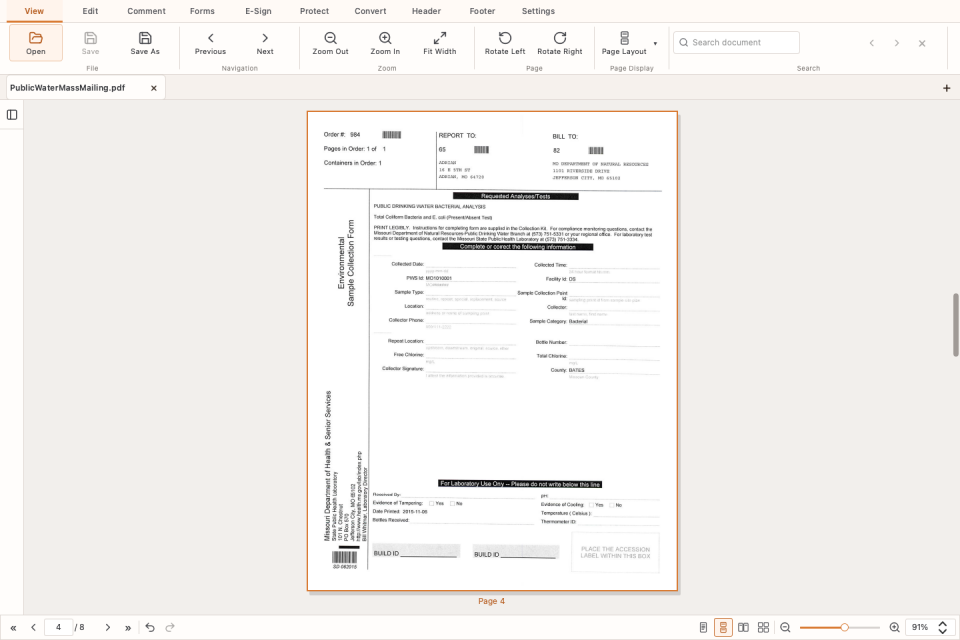
Your original page images, illustrations, and stamps stay intact. OCR adds an invisible text layer for searching and selecting words while the visible page remains the scan. Recognition runs on your computer without uploading the PDF.
Create a searchable PDF
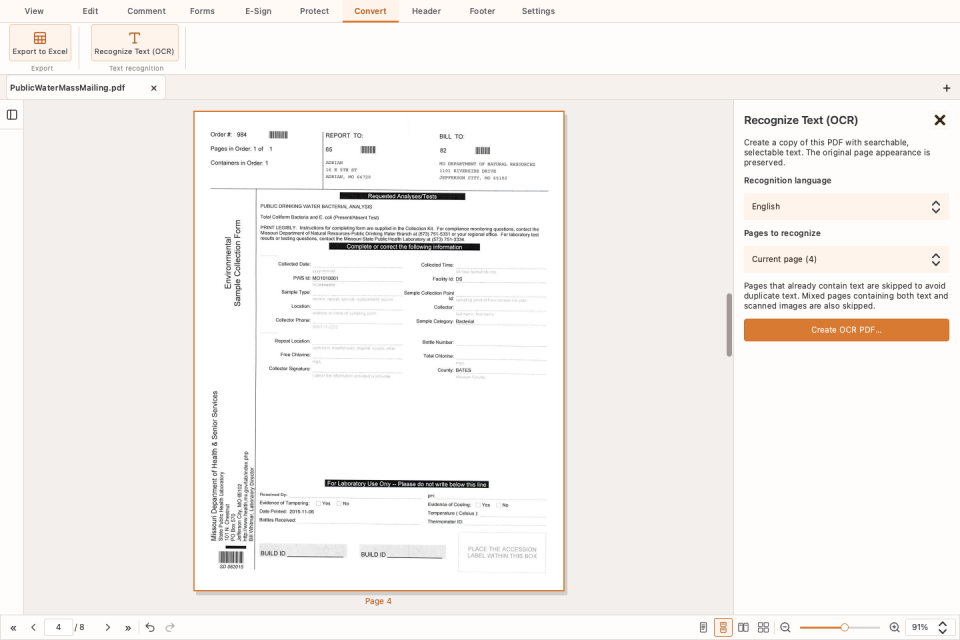
- Open your PDF, save pending edits, then choose Convert → Recognize Text (OCR).
- Select English or Vietnamese and choose all pages, the current page, or a page range.
- Choose where to save the separate result. It opens in a new tab when complete, ready to search and compare with the source.
Mixed documents need less repeated work
TrePDF skips pages that already contain text and recognizes the scanned pages that need it. An existing text layer stays as it is, so OCR cannot replace inaccurate recognition already in the PDF.
Check the words that matter
Clear, upright scans give better results. Try searching a few visible words, then check names, dates, numbers, and Vietnamese accents before copying text. OCR makes the scan searchable; the scanned image itself does not become editable text.